
How to Retrieve your lost data from Hard Disk

Recuva is a freeware which can recover objects/files on your computer which are deleted accidentally or by some virus or malware. It can also recover data from your partially corrupted hard disk.
Windows Tricks : how to increase RAM virtually
# To boost performance of your PC or to increase RAM virtually,
Right click on My Computer Icon on Desktop
>> Go to Properties
>> Go to Advanced
>> Go to Performance - Settings
>> Go to Advanced
>> Go to Virtual Memory - Change
Keep the initial size same as recommended and maximum size double of it then restart your system.
It will improve speed of windows and you can play some games which require higher RAM.
# To Minimise all the application and running windows press the "Windows + M " key together.
How to: speed up your wireless internet connection on Windows XP

 If you have a slow wireless internet connection that often crashes, then there’s probably something wrong with it. (Duh!) Here are some tips and tricks to fix some of the most common wireless problems on Windows XP. Before you start “fixing” anything, make sure your wireless connection isn’t already at it’s best.
How to: change the start button text on Windows XP
Tired of the boring old “start” button at the bottom left corner of your Windows XP’s monitor? Want something new to replace iit? Well here’s how to change it.
With a few modifications in the Windows Registry, you can replace the “start” text with anything you like. Great for achieving a new, custom look for your Windows XP. So let’s get started.
Warning: this tutorial is more for advanced users, and I'm not
responsible if your system gets messed up. Only attempt the following
at your own risk. Windows Tricks : how to Change Startup and Log-off screens
Startup Screen
1. Create a 320x400 bitmap in the root directory and name it LOGO.SYS
2. You can use LOGOW.SYS file in the Windows directory as a starter
Logoff Screens
1. There are many system file that constitutes Lofoff screen.
2. They are actually bitmaps 320x400 that just have a different extension
3. The hidden file in the root directory LOGO.SYS is the startup logo.
4. There are two files in the Windows directory.
5. LOGOW.SYS is the Wait while Shutting down ... screen.
6. LOGOS.SYS is the You may now shut-off or Reboot screen.
7. Make two new image files of your chice in Paint and name it as LOGOW.SYS and LOGOS.SYS and replce the actual windows file by this two.
8. But make sure they should be of the same size
Windows tricks : how to Lock a Folder in Windows XP
To Lock a folder in windows XP without any software. Follow the steps Below.
1. Make a Folder in C drive rename it as "abc" without quotes.
2. Now open Command Prompt from Start Menu.
3. Type "attrib +s +h C:\abc" without quotes and press enter.
4. This command will Make your folder invisble and it can not be seen even in hidden files and folders
5. To make it visible again type "attrib -s -h C:\abc"
6. You can lock any other folder also by changing the location C:\abc to address of your folder.
How To Open An Unknown File
Not knowing how to open a file!
OpenWith.org provides a free desktop utility that integrates itself with your shell context menu. Whenever you come across a file type you don’t recognise simply right click on the file and select "OpenWith.Org - How do I Open This?"
OpenWith.Org Desktop Application will open and display a list of applications installed on your computer which can open the file. If it doesn’t detect any supported applications on your system it will provide you with download links for required applications (freeware).

Its verys simple to use and really a good tool for those who doesn’t know how to open unknown files.
how to Shutdown your PC remotely using Twitter and TweetMyPC.


- Shutdown
- Restart
- Logoff
how to Change STARTUP and SHUTDOWN sounds in XP
Have you ever felt bugged-up with the Start-up and Shutdown jingle of your Windows XP or Vista ? If yes, here is the solution, now you use any of your favorite voice or music or dialogue as your PC’s shutdown and start up.
It’s a simple 4 step process.
Step 1.
Choose the track which you want to play at start-up and shutdown jingles,
Limitations are
* It should be in .WAV format.
* The size of file should not be large, prefer keeping them within in 1 Mb, otherwise your startup will take a bit longer.
If the file you want to make your start-up or shutdown is not in .WAV format, you can easily convert them using Jet Audio 7, or any other converter.
Step 2.
Now rename these files as “Windows XP Startup.WAV” and “Windows XP Shutdown.WAV” respectively.
Step 3.
Now Go to “C:\WINDOWS\MEDIA”, here you will find files “Windows XP Startup.WAV” and “Windows XP Shutdown.WAV”, move them to some other locations, this step is required for, in case you need to revert back these sounds, else you can ignore this step.
Step 4.
Now the files you have chosen and renamed, just copy-paste or cut paste them in “C:\WINDOWS\MEDIA”, here you go, now you can enjoy the newStart-up and shutdown.
How To Hide Files In A Calculator!
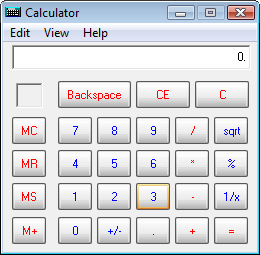
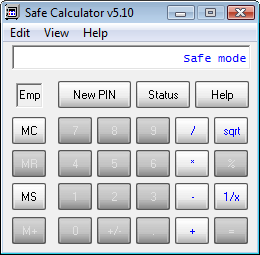 The default code/ pin for the safe is ‘123’. So, to unlock you need to type ‘123’ in the calculator and press on ‘MS’, now the calculator will enter into safe mode. Here you can change the default pin if you want by clicking on ‘New pin’.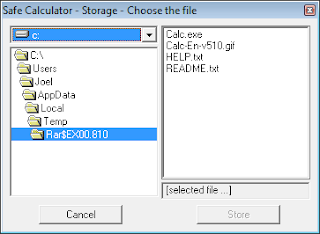
Now click on ‘+’ and then ‘=’ to confirm and enter into the safe to browse and choose the files you want to hide. Click on ‘Store’ once you’re done.
Download Safe Calculator
how to Increase InterNet Speed Using Notepad
1.
Open Notepad.
2.
Copy the following code to the Notepad.
[HKEY_LOCAL_MACHINE\SYSTEM\CurrentControlSet\Services\Tcpip\Parameters]
"SackOpts"=dword:00000001
"TcpWindowSize"=dword:0005ae4c
"Tcp1323Opts"=dword:00000003
"DefaultTTL"=dword:00000040
"EnablePMTUBHDetect"=dword:00000000
"EnablePMTUDiscovery"=dword:00000001
"GlobalMaxTcpWindowSize"=dword:0005ae4c
3.
Save the file as NetSpeed.reg or what ever name you want but the extension should be .reg.
4.
If you run the file means it asks for "Do you want to add the following entry to the registry"
5.
Press Yes
6.
Reboot your PC.
7.
Feel the difference....